 Collection
Loading Screen Stories
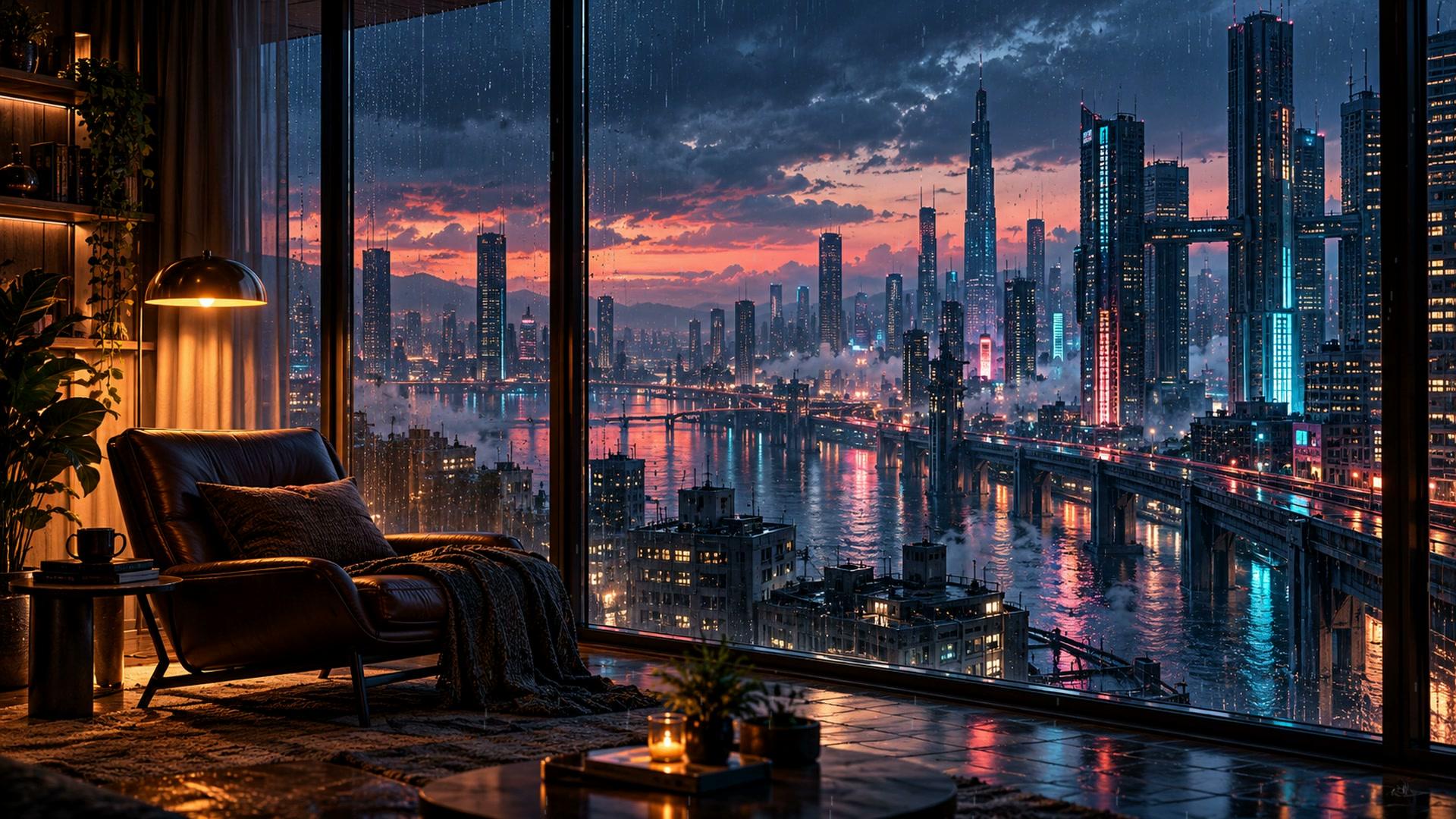
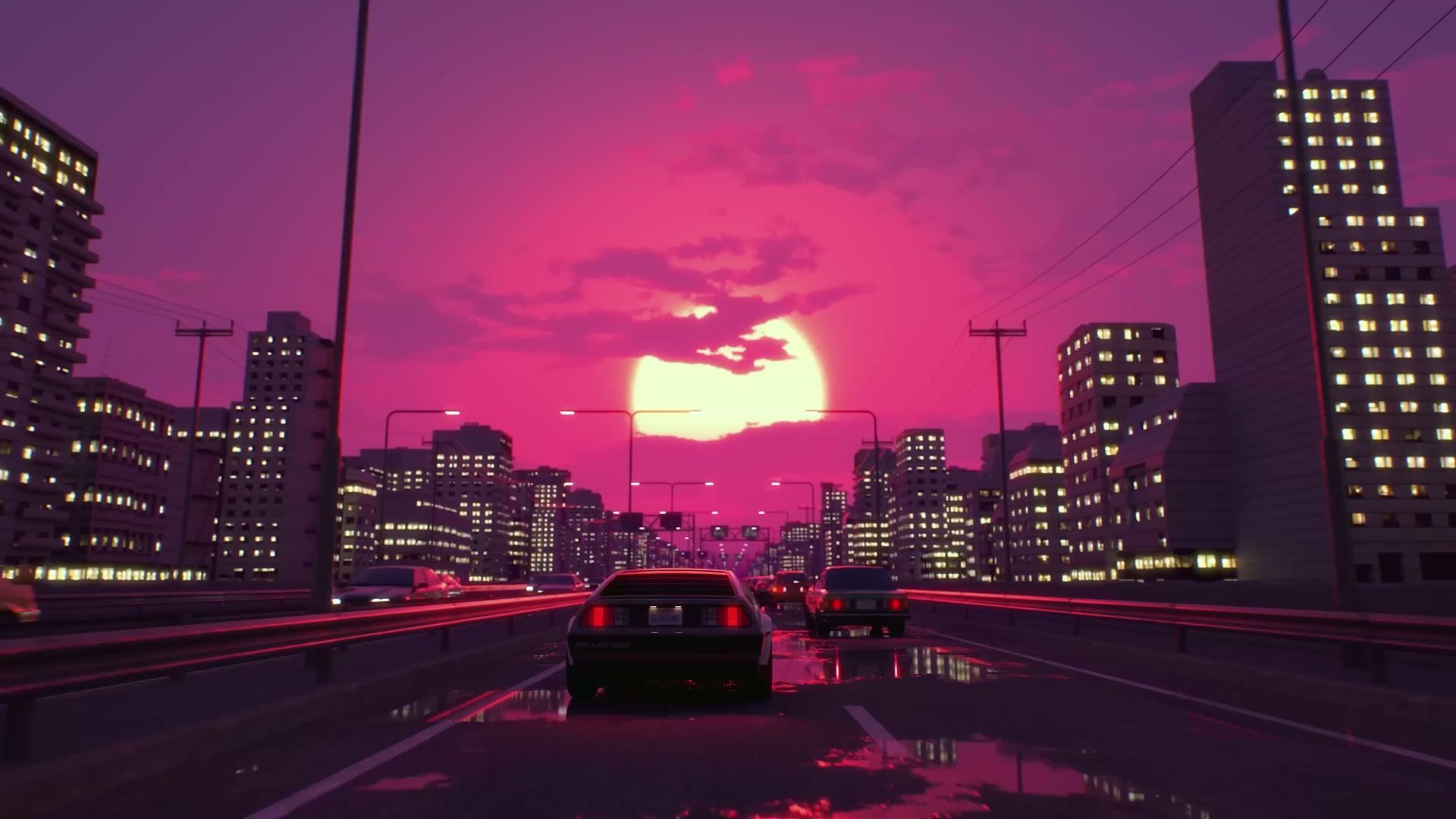
Transform cluttered Windows desktops into a calm, distraction-free aesthetic battlestation. Experience native 4K dynamic motion wallpapers, frosted glass taskbars, and configurable pause settings during gaming.
Step-by-Step Blueprint
Follow these four proven steps to transform your PC from generic default styling to a clean, gallery-grade desktop.
Install the standalone Motion Realms Windows app or import the 4K MP4 video files into Lively Wallpaper. Under Lively Settings > Performance, ensure Pause on Fullscreen is active to reduce wallpaper resource use during games.
Use Windhawk Taskbar Styler or TranslucentTB to replace the opaque Windows bar with a subtle frosted glass blur that dynamically adapts to your wallpaper’s color palette.
Right-click your desktop > View > uncheck Show Desktop Icons. Use Windows 11 centered taskbar alignment and assign your top applications to clean keyboard shortcuts or PowerToys Run (Alt+Space).
If running an OLED monitor (LG C-series, ASUS ROG, Alienware QD-OLED), run the Windows HDR Calibration app. Motion Realms scenes feature deep 0-nit black points to eliminate burn-in risk and maximize panel contrast.
Handcrafted for PC
Collection Collection
 Collection
 Collection
 Collection
 Collection
 Collection
 Collection
Frequently Asked Questions
Live wallpapers use system resources. Lively Wallpaper offers full-screen pause settings; enable them and test performance on your PC. Independent Windows installation testing is still pending.
Yes. Every Motion Realms Windows purchase includes both a standalone standalone native Windows installer (.exe) and pristine 4K 60 FPS master video loops (.mp4) that can be imported directly into Lively Wallpaper, Wallpaper Engine, or any compatible Windows background utility.
We recommend Windhawk with the 'Windows 11 Taskbar Styler' mod or TranslucentTB from the Microsoft Store. Both allow you to configure an acrylic or completely clear taskbar with centered icons that blend seamlessly into your 4K dynamic background.
Motion Realms natively supports dual, triple, and ultra-wide monitor configurations. You can stretch a cinematic canvas across multiple displays or assign independent 4K live wallpapers to each connected monitor with distinct aspect ratios (16:9, 21:9, 32:9).
Yes. All Motion Realms motion loops are muted by default. They will never interrupt your Discord calls, Spotify music, gaming audio, or system notifications.