How to make your
MacBook aesthetic.
A practical guide to aesthetic wallpapers, useful widgets and matching folder icons. Start with one scene. Give the rest of your desktop room to breathe.
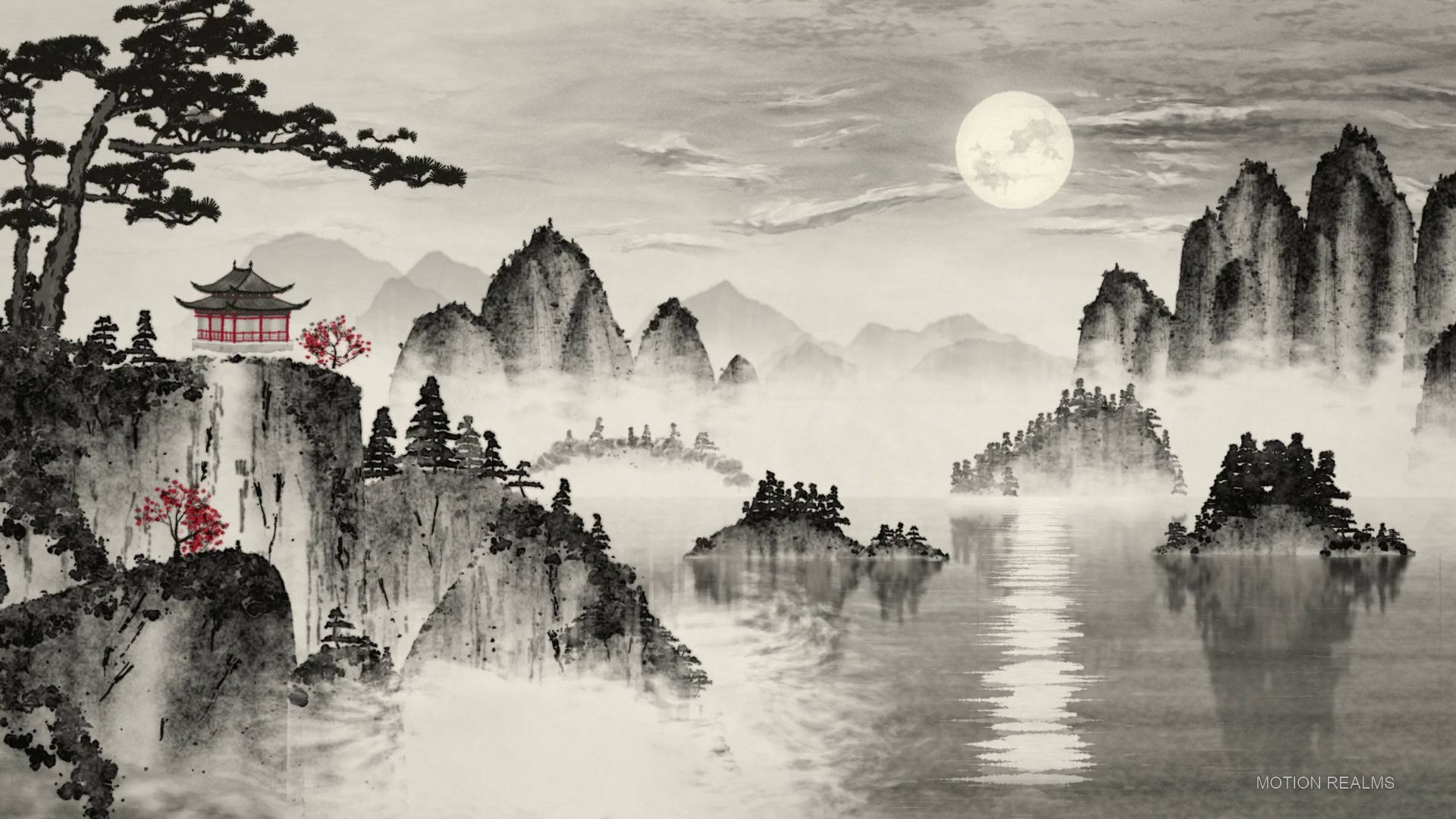
One mood. Three ways to start.
Choose a background you would enjoy seeing every day. Repeat one or two colors in your folders and widgets instead of adding more visual noise.
Quiet & minimalInk wash, soft contrast and a small group of widgets. Leave the moon unobstructed.
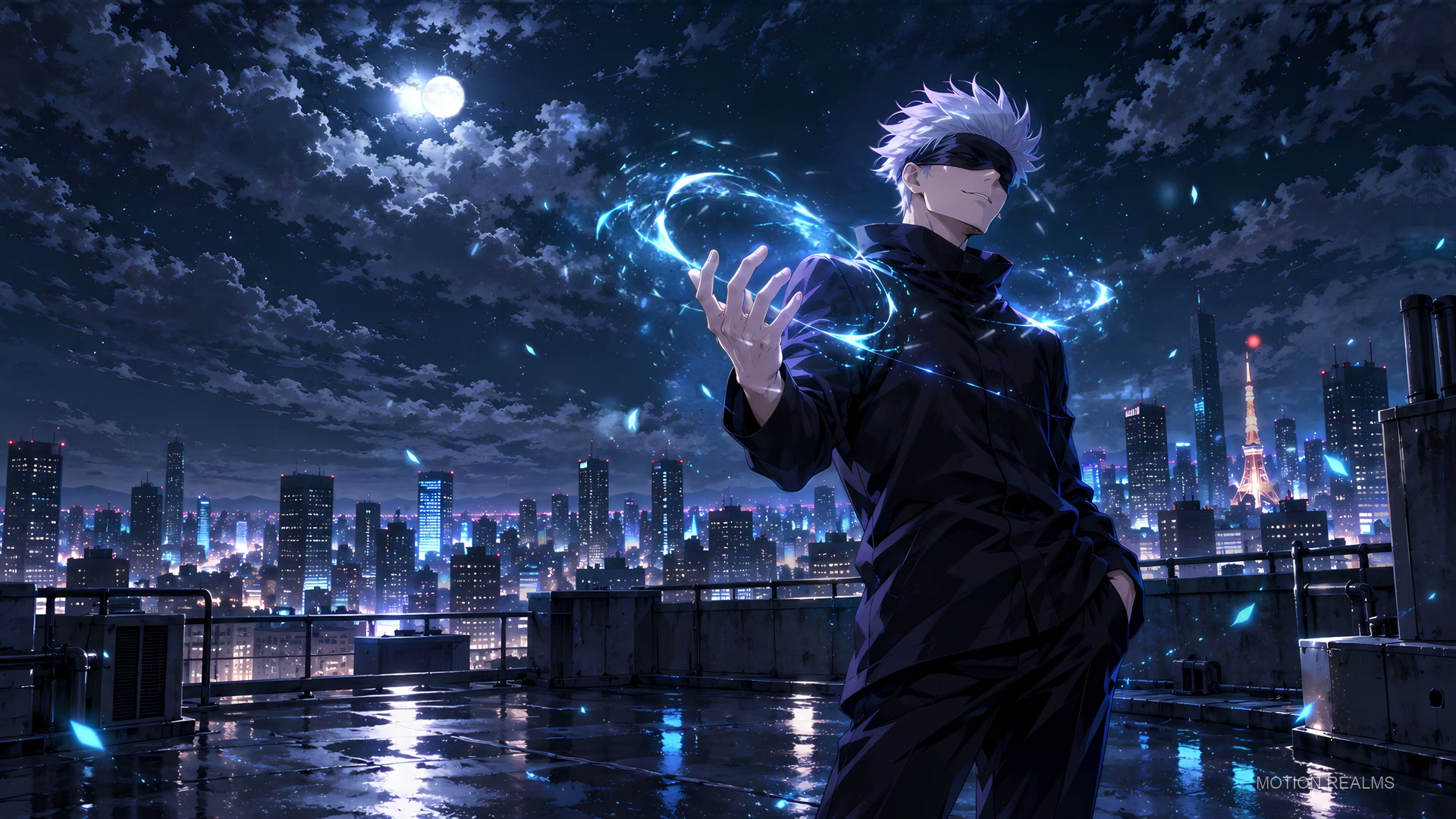 Anime after dark
Blue accents and a dark skyline. Keep widgets away from the character and energy effects.
 Neon & machines
Red highlights and a darker dock. Give the car’s silhouette space to stay visible.
For warmer colors, try Naruto’s Hidden Leaf sunset or Rain & Cozy scenes. For a tropical 4K source, compare the GTA 6 collection.
How to change wallpaper on Mac.
For a still image, open System Settings → Wallpaper and select a background. The Photos app also lets you share a selected photo to Set Wallpaper. See Apple’s wallpaper instructions for your macOS version.
Still or native dynamic
A photo stays still. A supported native dynamic background can change its appearance over time. Use an explicitly compatible file and Apple’s settings.
Animated video wallpaper
A looping video needs a compatible player. Motion Realms scenes use this format; they are not native dynamic HEIC files. The Mac collection app requires macOS 26+ and uses Phosphene.
A MacBook display may have a different shape from a 16:9 video. Fit can leave borders; fill can crop the edges. Check the face, car or other focal point with your own widgets and icons. Native pixel dimensions matter more than a “4K” label on a preview.
Motion Realms collection downloads are not open for purchase yet. Our GTA 6 masters are 3840 × 2160; the current Gojo, Naruto, Tesla and Porsche scenes are 2560 × 1440. Browser previews are separate watermarked clips. Read the Mac installation guide for first-launch approval and collection installation.
How to add widgets to your MacBook.
On supported macOS versions, Control-click an empty part of the desktop and choose Edit Widgets. Pick a useful widget from the gallery and place it where it will not cover the artwork. Control-click an existing widget to see its available editing, sizing or removal options. Options vary by app and macOS version.
Placement illustration, not a screenshot of macOS.
Start with a calendar and one widget you actually use. For display settings, look under System Settings → Desktop & Dock → Widgets. Read Apple’s widget guide for the controls on your version. Widgets are macOS/app features; Motion Realms does not include a widget pack.
Match your folder icons.
For a custom file or folder icon, open an image in Preview and copy it. In Finder, select the target item and open File → Get Info. Select the small icon at the top of that window and paste the image. To restore the original, select that same small icon and choose Edit → Cut. Some system items cannot be customized.
Color grouping illustration. A few matching folders are enough.
Recent macOS versions may also offer a folder customization menu with colors, symbols or emoji. Use Apple’s folder icon instructions for the exact options. Use images you have permission to use; wallpaper collections do not include an icon pack.
Keep the setup useful.
- Move loose files into a few clearly named folders so the scene stays visible.
- Keep only regularly used apps in your Dock, and adjust its size in Desktop & Dock settings.
- Check text contrast, display scaling and the crop on each connected display.
- For video wallpapers, check your player’s pause and battery options. Performance depends on the Mac, file and player.
- Try your setup during normal work. Reduce motion or switch to a still image if movement is distracting.
Before you choose a wallpaper.
Does a live wallpaper change my lock screen too?
That depends on macOS and your player. Our laptop previews are illustrative. Check the Mac compatibility page; the app does not replace startup or FileVault login screens.
Do I need to buy anything to add widgets or change folders?
macOS provides desktop customization features on supported versions. Some third-party apps or assets may have separate costs. A Motion Realms purchase is for the selected wallpaper collection; widgets and icons are not included.
Can I add another purchased collection later?
Each category has its own Mac DMG. Open each collection once after installing it into the same Motion Realms app. Its scenes join your persistent library; existing installed collections and personal imports remain available.
What happens on first launch?
The Mac app requires macOS 26+ and is not Apple-notarized. macOS may require manual approval. Follow the first-launch instructions and do not disable Gatekeeper globally.
Find a scene for your setup.
Explore Anime, Cars, Ink Wash, Minimal or Rain & Cozy. Try the laptop preview before choosing a collection.
Browse all collections ↗Choose a wallpaper that fits your MacBook
For a moving desktop, start with dynamic MacBook wallpapers and Mac screensavers. Native Apple dynamic backgrounds change with time or appearance; a looping video wallpaper uses a compatible player. Choose the format before buying.
For a colorful setup, compare Lucia Caminos with Vice City Sunset. For more space around widgets, explore minimal wallpapers. Each scene page states its source resolution; not every scene is 4K.